


Page 96 - HTML5
P. 96
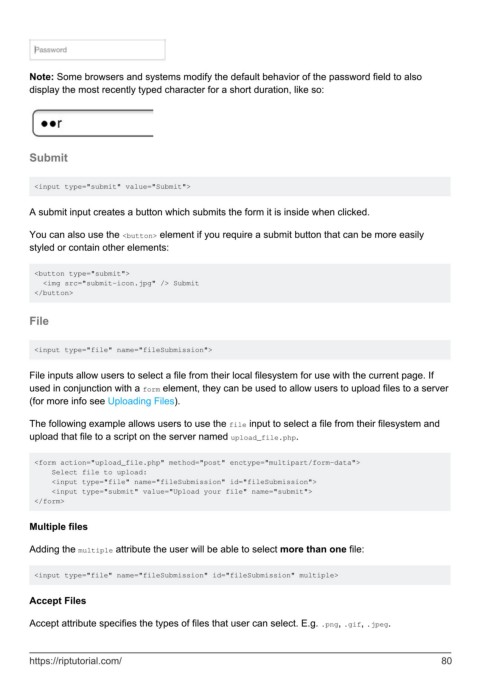
Note: Some browsers and systems modify the default behavior of the password field to also
        display the most recently typed character for a short duration, like so:


        Submit


         <input type="submit" value="Submit">


        A submit input creates a button which submits the form it is inside when clicked.


        You can also use the <button> element if you require a submit button that can be more easily
        styled or contain other elements:


         <button type="submit">
           <img src="submit-icon.jpg" /> Submit
         </button>


        File


         <input type="file" name="fileSubmission">


        File inputs allow users to select a file from their local filesystem for use with the current page. If
        used in conjunction with a form element, they can be used to allow users to upload files to a server
        (for more info see Uploading Files).

        The following example allows users to use the file input to select a file from their filesystem and
        upload that file to a script on the server named upload_file.php.


         <form action="upload_file.php" method="post" enctype="multipart/form-data">
             Select file to upload:
             <input type="file" name="fileSubmission" id="fileSubmission">
             <input type="submit" value="Upload your file" name="submit">
         </form>


        Multiple files


        Adding the multiple attribute the user will be able to select more than one file:


         <input type="file" name="fileSubmission" id="fileSubmission" multiple>


        Accept Files

        Accept attribute specifies the types of files that user can select. E.g. .png, .gif, .jpeg.


        https://riptutorial.com/                                                                               80

